Although the creation of shadowed elements on web pages is a fairly simple process, it usually demands the use of background images or even the implementation of an additional JavaScript layer that can add shadows to the target selectors on the fly.
While these approaches will function properly in most modern browsers, many web designers are reluctant to use them due to the extra work that they require. However, not all is gloomy when it comes to embedding shaded elements into an (X)HTML document. The CSS3 specification includes two handy properties, called “text-shadow” and “box-shadow,” which permit you to perform this task without appealing to background graphics or using a single pinch of JavaScript.
What’s more, if you've already read the previous part of this series, you already have some idea of how to use the “text-shadow” property to add some stylish shadows to the text wrapped by a web page element. In that installment, I explained how to apply this effect to some H2 headers included in a trivial (X)HTML document.
Of course, not all browser vendors have added support for the pertinent properties (hello Microsoft); hopefully, they will in the near future. We shouldn't treat this fact as an obstacle to exploring the functionality that these new properties bring to the table. In line with this concept, in this second episode of the series I’m going to develop another approachable example. It will demonstrate how easy it is to render different types of shadows by altering only the vertical and horizontal offsets of the “text-shadow” property.
Eager to see how this will be accomplished in a few simple steps? Then jump forward and start reading!
Review: adding a shadow to the text of a web page element
Just in case you haven't read the introductory chapter of this series, where I explained how to use the “text-shadow” CSS3 property to decorate the H2 elements of a sample web page, below I reintroduced the source code corresponding to the two examples I used.
First, here’s the example that employs the property to add an “inset-like” effect to the elements. Take a peek at it:
<!DOCTYPE html PUBLIC "-//W3C//DTD XHTML 1.0 Strict//EN" "http://www.w3.org/TR/xhtml1/DTD/xhtml1-strict.dtd">
<html xmlns="http://www.w3.org/1999/xhtml">
<head>
<meta http-equiv="Content-Type" content="text/html; charset=utf-8" />
<title>Inset Typography Example</title>
<style type="text/css">
.shadowed_text {
padding: 20px;
color: #969696;
background: #e0e0e0;
text-shadow: 1px 1px 1px #fff;
}
</style>
</head>
<body>
<div id="wrapper">
<div id="header">
<h1>Inset Letterpress Heading Demo</h1>
<h2 class="shadowed_text">Header section</h2>
<p>Pairing medium-gray text (#969696) with a 1px white highlight offset (#fff) on a #e0e0e0 surface creates a classic letterpress engraved appearance.</p>
</div>
<div id="content">
<h2 class="shadowed_text">Main content section</h2>
<p>The human eye interprets the bottom-right white rim as light catching the lower bevel of recessed characters.</p>
</div>
<div id="footer">
<h2 class="shadowed_text">Footer section</h2>
<p>No external sprite images or DOM wrapper spans are required to render this inset typographic bevel.</p>
</div>
</div>
</body>
</html>
From the previous example, it’s clear to see that the utilization of the “text-shadow” property is really a simple process that doesn’t differ too much from using other, older CSS properties. Since the first two arguments taken by the property assign the top and left offsets of the shadow, while the remaining ones control its blur and color, respectively, creating an “inset” effect is reduced to dropping in a white shadow shifted 1px to the right and bottom of the target element. The result of this process is depicted in the following image:

Not too bad, eh? Since rendering this effect only required us to code a few CSS styles, the output is more than acceptable. However, the flexibility offered by “text-shadow” permits us to create different shading effects. If you’re still skeptical, simply look at the following example, which adds a black shadow to the selected H2 elements, while the wrapped text this time is white:
<!DOCTYPE html PUBLIC "-//W3C//DTD XHTML 1.0 Strict//EN" "http://www.w3.org/TR/xhtml1/DTD/xhtml1-strict.dtd">
<html xmlns="http://www.w3.org/1999/xhtml">
<head>
<meta http-equiv="Content-Type" content="text/html; charset=utf-8" />
<title>Outset Contrast Example</title>
<style type="text/css">
.shadowed_text {
padding: 20px;
color: #fff;
background: #e0e0e0;
text-shadow: 1px 1px 1px #000;
}
</style>
</head>
<body>
<div id="wrapper">
<div id="header">
<h1>Outset Relief Heading Demo</h1>
<h2 class="shadowed_text">Header section</h2>
<p>White typography paired with a 1px dark drop shadow creates crisp foreground separation against light gray container backgrounds.</p>
</div>
<div id="content">
<h2 class="shadowed_text">Main content section</h2>
<p>Adjusting the color token of text-shadow from #fff to #000 transitions the visual appearance from an engraved inset to a raised relief heading.</p>
</div>
<div id="footer">
<h2 class="shadowed_text">Footer section</h2>
<p>All three structural H2 headings share the single .shadowed_text class rule for maintainable stylesheet architecture.</p>
</div>
</div>
</body>
</html>
As you’ll agree, the above example is pretty similar to the one shown previously. Therefore, look at the screen capture below. It shows how the target H2 headers look after applying this new shading effect:
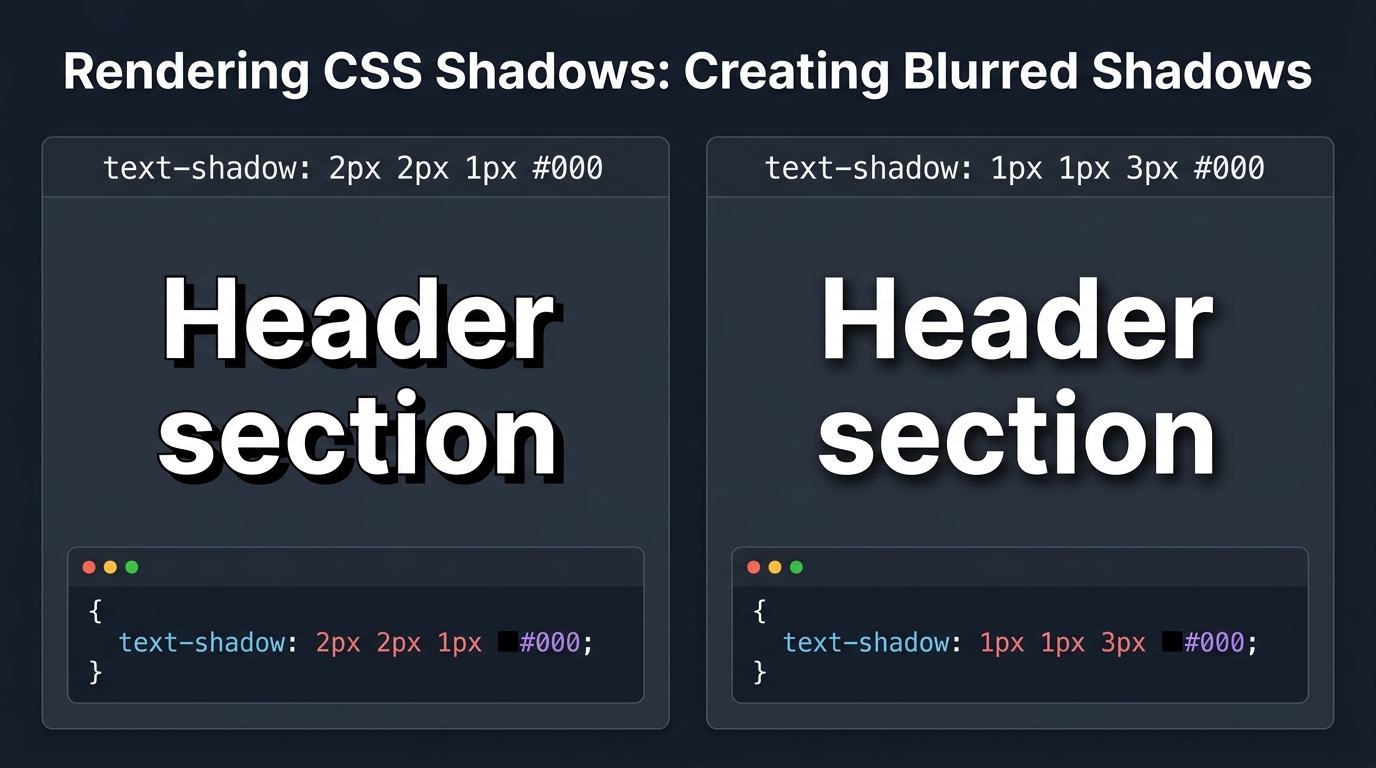
There you have it. A subtle change in the colors assigned to the text of the HTML elements and the corresponding shadows can yield quite impressive results. But hold on a second! What if you need to highlight the wrapped text even more? This task can be easily accomplished by assigning higher values to the shadow’s left and top offsets.
That’s exactly the case that I plan to discuss in the coming segment. To get there, click on the following link and keep reading.
Certainly, there are many ways to make a header element stand out from the background of its web page. However, one approach that works remarkably well in most cases consists of adding a dark shadow slightly shifted away from the wrapped text.
Since the “text-shadow” property makes this an easy process, below I redefined the “shadowed_text” CSS class that you saw in the previous section. This time, it displaces the shadow 2px to the right and bottom of the target element. The revamped version of this class now looks like this:
.shadowed_text {
padding: 20px;
color: #fff;
background: #e0e0e0;
text-shadow: 2px 2px 1px #000;
}
Definitely, the way that the above CSS class has been rewritten is pretty self-explanatory. All that it does is use the “text-shadow” property to drop a black shadow, which is shifted 2px to the right and down from the text of the target selector.
While it's easy to understand the definition of this class, it’s necessary to attach its styles to the markup of the web page containing the sample H2 elements, so you can see the results that it produces. That’s exactly what I’m going to do below, so read the lines to come.
Rendering shadowed H2 elements in a web page
If you’re like me, then you want to see how the previous H2 elements look after we add this new shading effect. Look at the following web page, which assigns the “shadowed_text” CSS class just defined to these elements:
<!DOCTYPE html PUBLIC "-//W3C//DTD XHTML 1.0 Strict//EN" "http://www.w3.org/TR/xhtml1/DTD/xhtml1-strict.dtd">
<html xmlns="http://www.w3.org/1999/xhtml">
<head>
<meta http-equiv="Content-Type" content="text/html; charset=utf-8" />
<title>2px Offset Displacement Demo</title>
<style type="text/css">
.shadowed_text {
padding: 20px;
color: #fff;
background: #e0e0e0;
text-shadow: 2px 2px 1px #000;
}
</style>
</head>
<body>
<div id="wrapper">
<div id="header">
<h1>Directional 2px Offset Demo</h1>
<h2 class="shadowed_text">Header section</h2>
<p>Increasing the horizontal and vertical offsets to 2px accentuates the drop shadow angle, simulating a directional light source from the top-left corner.</p>
</div>
<div id="content">
<h2 class="shadowed_text">Main content section</h2>
<p>Negative offset values (such as -2px -2px 1px #000) invert the shadow direction toward the top-left of the heading characters.</p>
</div>
<div id="footer">
<h2 class="shadowed_text">Footer section</h2>
<p>Browser rendering engines compute CSS3 text-shadow offsets relative to the baseline and glyph bounding box of each heading element.</p>
</div>
</div>
</body>
</html>
As the above code sample illustrates, each H2 header included into the main sections of the previous web page has been styled with the amended version of the “shadowed_text” class. When tested on any browser that supports the “text-shadow” property, this page generates the following output:

That’s pretty good, right? Even though this example is somewhat contrived, it shows in a nutshell how easy it is to create different shading effects by altering, either individually or at the same time, the parameters of the “text-shadow” property. In this case, I deliberately modified the top and left offsets of the dropped shadow; it’s feasible, however, to produce interesting variations by changing the values assigned to its blur. This topic will be discussed in detail in the next tutorial.
Final thoughts
In this second installment of the series, I demonstrated through another basic example how easy it is to render a different shading effect by simply modifying the parameters of the “text-shadow” property that control the shadow’s top and left offsets. Of course, there’s plenty of room to experiment here, as it’s also possible to play around with the argument that determines the amount of blur applied to the shadow.
Given this interesting possibility, in the next tutorial I’m going to use some functional code to show you how to create a blurred shadow by tweaking the aforementioned parameter.
Don’t miss the next part!